Platform features

The tools to capture, explore and manage your asset

Explore your facility through 360° imagery, connect engineering information to real locations, review changes over time and manage dropped-object risks. Choose the capabilities that fit your operation, with visual asset management and PDO management available independently or together.

Assets & levels

Organise your facility around its physical layout

Create a structured visual record of your facility, organised by asset and level. Keep plans, imagery, drawings and inspection findings connected to their correct locations.

  • What it does Create assets, manage asset information and organise facility levels using a structure that reflects your installation.
  • How it works Upload level plans, configure access permissions and use each level to organise 360° capture locations, tags, documents and findings.
  • Why it matters Teams can navigate complex facilities more easily, with relevant visual information and inspection records organised in one place.
Asset portfolio with levels for each asset
RigScene 360

Turn captured imagery into a navigable virtual tour

Build an interactive visual record of your facility using 360° imagery captured with your own cameras or drones. Connect capture locations to facility plans and move between viewpoints to explore the asset remotely.

  • What it does Upload and manage 360° panoramas, maintain different image resolutions and connect capture locations through interactive navigation links.
  • How it works Place capture nodes on level plans, upload the corresponding panoramas and link neighbouring locations to build a navigable tour.
  • Why it matters Give engineers and operations teams a practical way to review site conditions remotely, without relying on disconnected photographs or commissioning a new survey for every visual update.
360° walkthrough
360 degree tour viewer with navigation hotspots
Inspection history

Compare conditions over time

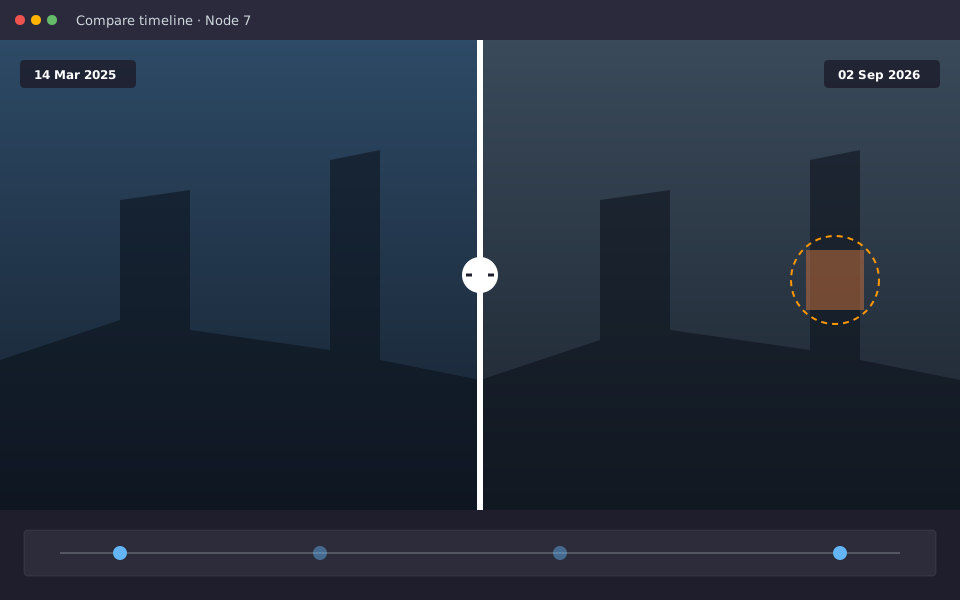
Build a dated visual history of your facility by revisiting the same capture locations. Compare previous and current imagery to review visible changes and support inspection planning.

  • What it does Store multiple dated captures at the same location and compare imagery using Timeline mode.
  • How it works Re-capture a location, upload the updated panorama and compare it with earlier images to review changes between inspection periods.
  • Why it matters Support corrosion reviews, maintenance planning and post-repair checks with a visual record of how conditions have changed. Comparisons help identify visible changes but do not replace physical inspection where required.
Two dated panoramas compared side by side
Tags & findings

Record findings in their actual site context

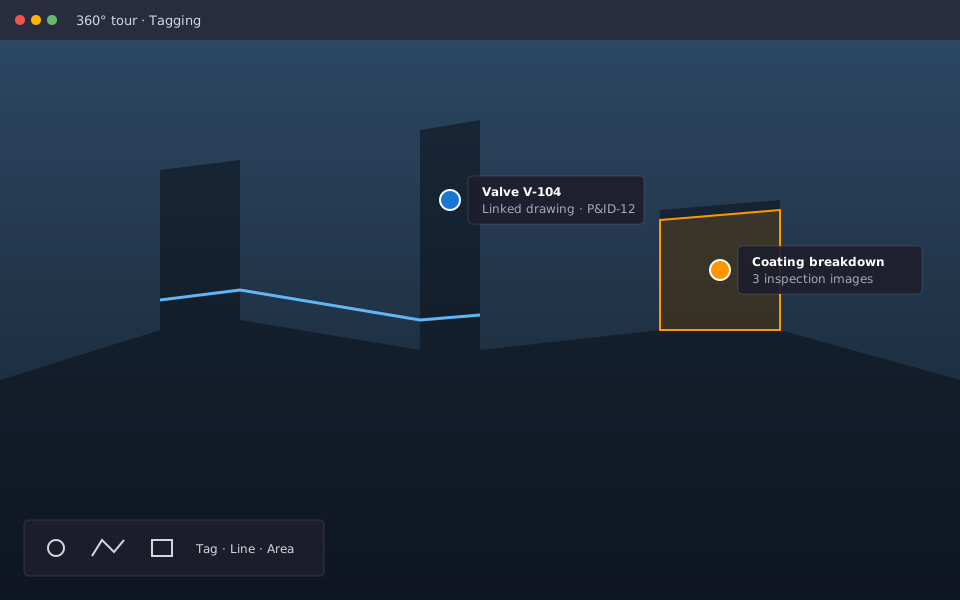
Place equipment tags, inspection findings and custom markers directly within the 360° viewer. Keep supporting photographs and relevant information connected to the location where each item was identified.

  • What it does Create configurable tag types, add markers and annotations, and attach supporting inspection photographs.
  • How it works Position tags, polylines or polygons within the viewer and link relevant findings to equipment, drawings or PDO records where the relevant module is enabled.
  • Why it matters Give reviewers a clear visual reference for each finding, making it easier to understand its location, review supporting evidence and prepare follow-up work.
Tags, a polyline and a polygon in a 360 degree view
Drawings & documents

Connect visual findings to engineering information

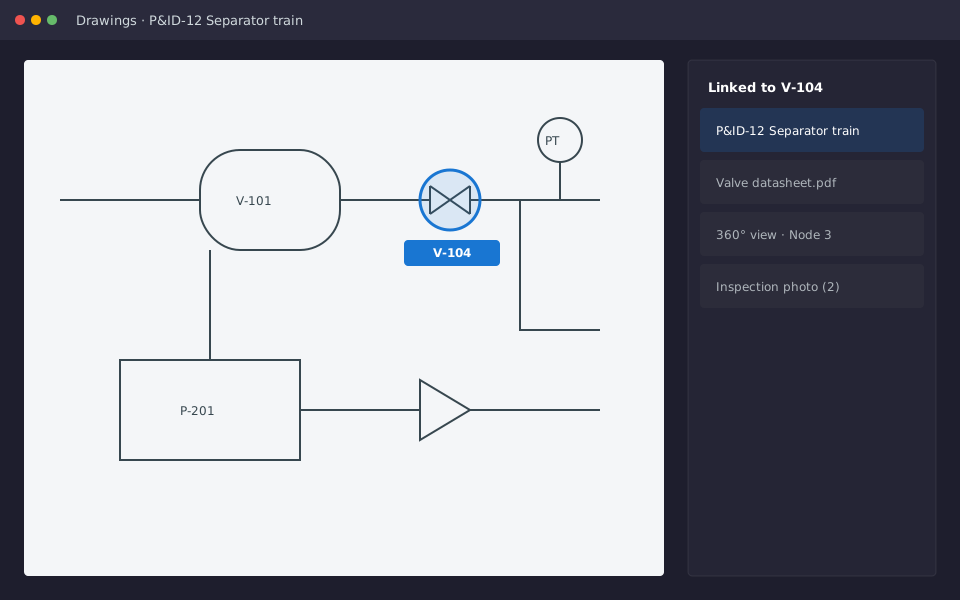
Keep facility plans, P&IDs, engineering drawings and supporting documents accessible alongside the imagery and findings they relate to.

  • What it does Upload and organise drawings and documents against relevant assets and levels, with links to associated tags and findings.
  • How it works Store drawings within the asset structure and link them to relevant locations or records to provide additional engineering context.
  • Why it matters Reduce the time spent searching across disconnected folders and systems when reviewing findings, preparing work scopes or supporting technical assessments.
P and ID drawing with a linked tag and documents
Point clouds

Bring spatial data into your visual workspace

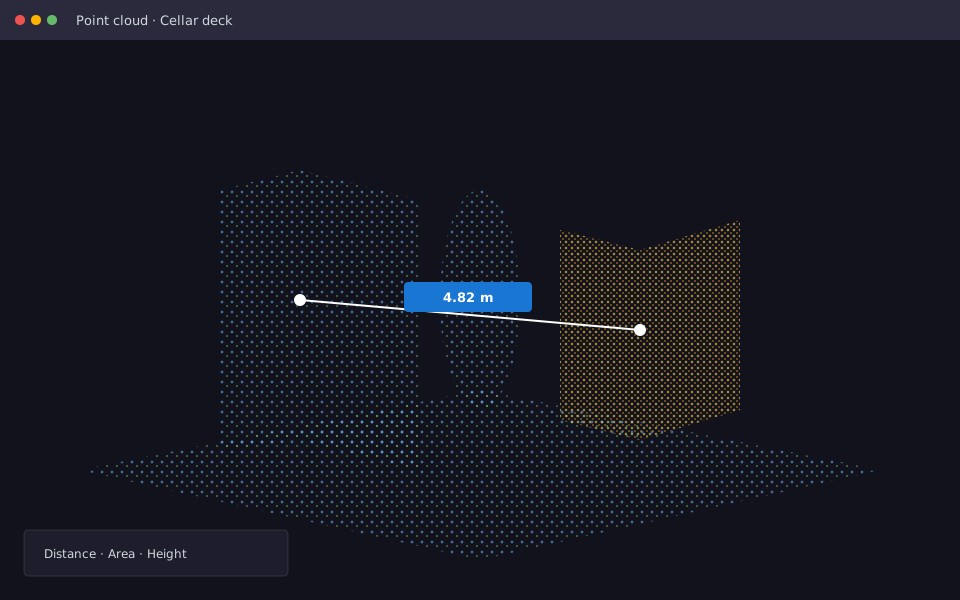
Optional capability. View local point-cloud captures alongside your facility imagery and engineering information when additional spatial detail is required.

  • What it does Display supported point-cloud data in the browser and use available measurement tools to review distances, areas and heights.
  • How it works Upload compatible point-cloud datasets and open the corresponding scene to inspect spatial relationships and carry out supported measurements.
  • Why it matters Keep relevant survey geometry accessible alongside the visual record, helping teams review spatial information without moving between disconnected applications.
Point-cloud scene with a distance measurement
RigScene PDO

Manage dropped-object risks from identification to close-out

Maintain a structured Potential Dropped Object (PDO) programme with location-based records, severity assessments, mitigation details and supporting evidence. Track findings through their lifecycle and maintain an auditable record of inspections and close-out.

  • What it does Create and manage PDO records, assess severity, document mitigations, define hazard zones and generate register exports and reports.
  • How it works Place PDOs on facility plans or create them from supported viewer tags. Record assessments, attach photographs, track status and maintain inspection and audit history.
  • Why it matters Give teams a consistent way to manage dropped-object findings, prioritise actions and produce supporting records for programme reviews and audits.
PDO register
PDO register with severity, status and export
Work areas

Organise surveys and repairs by defined work area

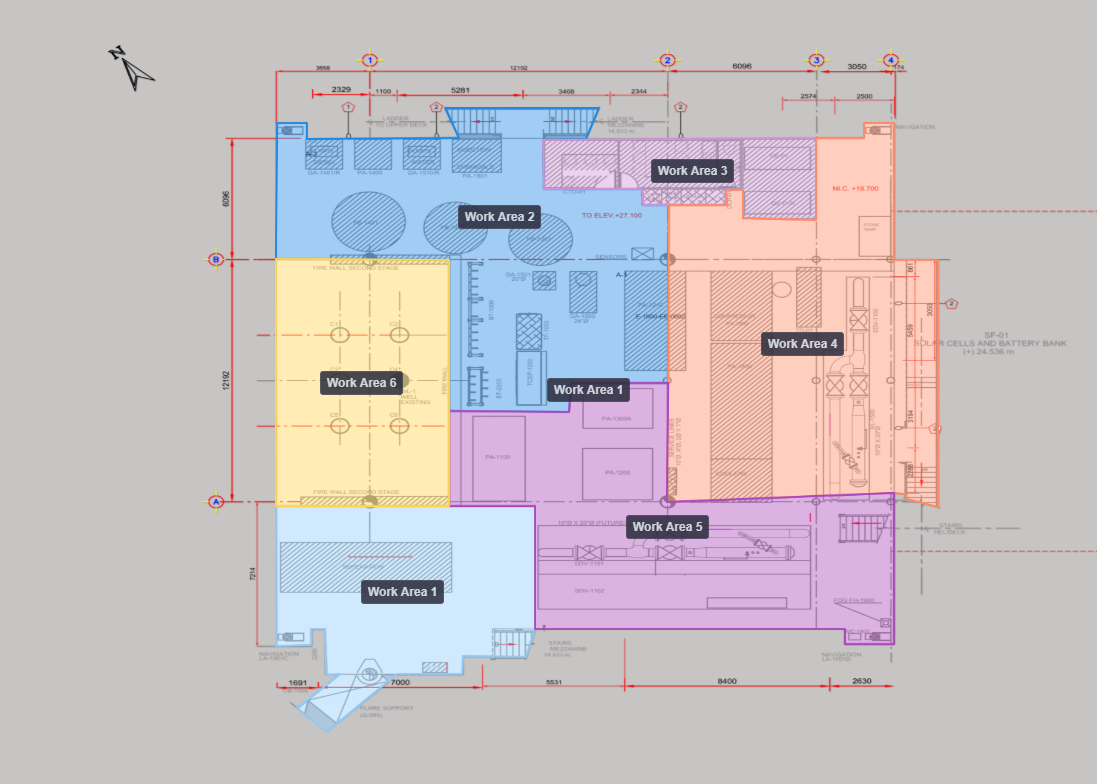
Divide facility levels into named work areas to help structure PDO surveys, inspection campaigns and repair planning around practical sections of the asset.

  • What it does Define work areas on facility plans and organise relevant findings and activities by location.
  • How it works Create or edit work-area boundaries and use them to organise surveys, filter findings and plan repair activities for specific sections of the facility.
  • Why it matters Support systematic survey coverage, clearer work scopes and more manageable repair campaigns without treating an entire deck as a single work area.
Work areas and advanced search on a deck plan
Work area approach on a subdivided deck plan
Viewer & access

Configure the view around the task

Control how information is displayed so teams can focus on the imagery, findings and engineering details relevant to their work.

Visibility controls

Show or hide supported tags, navigation links and overlays to keep the viewer clear and relevant.

Configurable viewer settings

Adjust available viewing options and navigation behaviour to suit the way your team reviews and explores the asset.

Supporting inspection photographs

Attach close-up photographs to relevant findings to provide additional detail alongside the wider 360° context.

Role-based permissions

Assign Read Only, User and Editor access to control who can view information, update findings and modify asset content.

Intermittent connectivity

Support remote and offshore workflows where connectivity may be limited. Check the availability of specific functions when working without a reliable connection.

Exports and evidence

Generate available CSV exports, PDF reports and annotated downloads to support inspection reviews, reporting and audit requirements.

Your asset data. Your access controls.

Manage access through role-based permissions, two-factor authentication and regional hosting options where configured for your deployment.

Regional hosting options

Choose from available hosting regions in the USA, EU (London) or Australia, subject to your deployment configuration.

Two-factor authentication

Use Microsoft Authenticator or Google Authenticator for an additional layer of account security. Configure enforcement according to your organisation’s supported access settings.

A clearer view of your asset. A more connected way to manage it.

Explore how RigScene can help your team capture site imagery, review inspection findings, maintain visual history and manage dropped-object risks.